
Overview
This guide covers How to Create & Import Your Menu in Chively using a consistent, support-friendly workflow.
Before you begin
- Confirm you can access the Chively Management Page or POS as needed.
- Make sure your account has permission to change these settings.
- Keep a test order, test payment, or test user available for validation.
Steps
- Instructions on how to import your menu to Chively, including food, beverages, customizations, and tax rates in the same file.
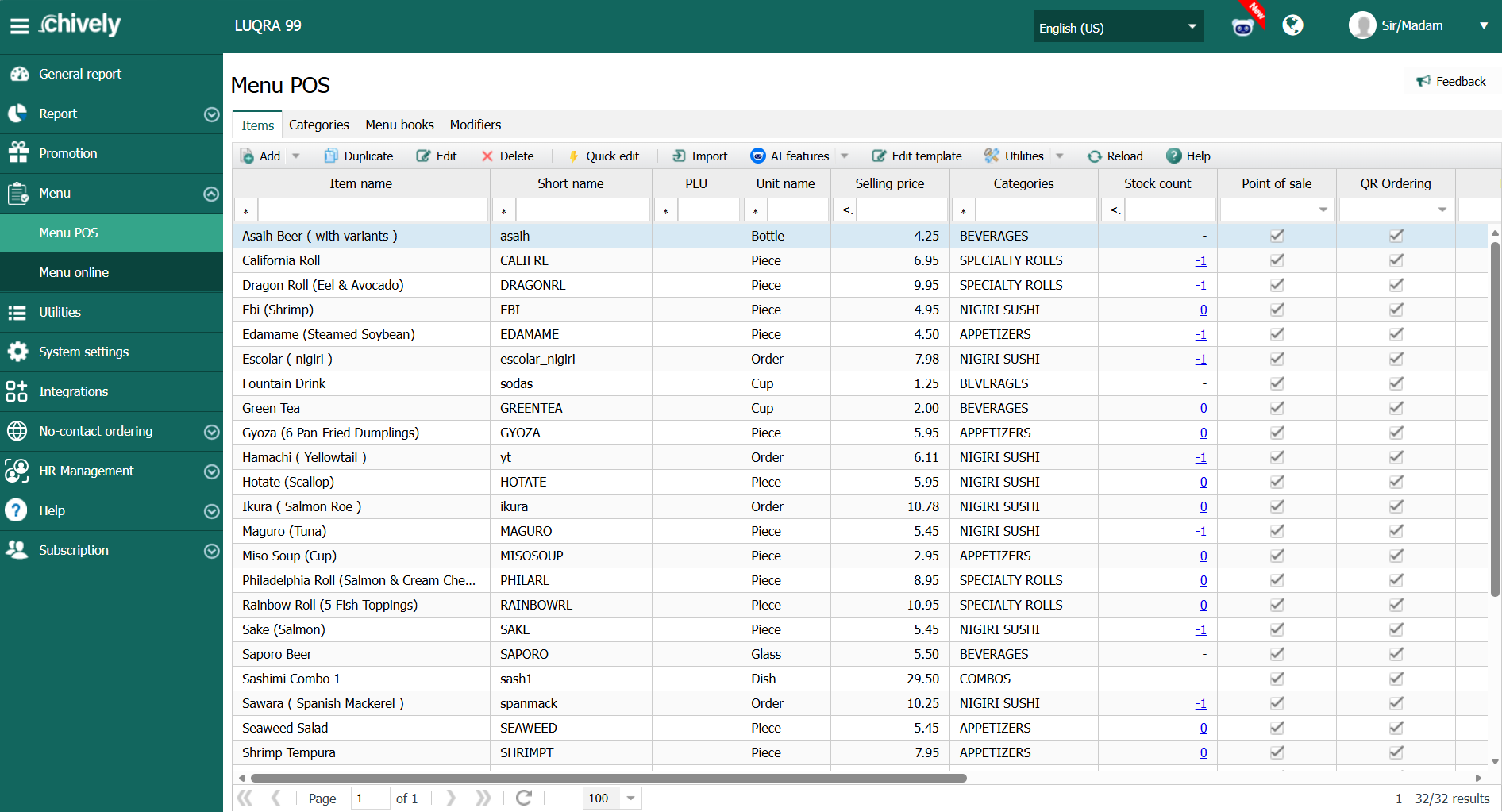
- From the Admin page, go to Menu and select Menu POS/QR Ordering. Click Here to download the Excel menu template.
- This Excel file has four sheets: Example, Taxes, Modifiers, and Menu. The Example sheet includes instructions on how to enter your menu information.
- Before adding items to the menu, enter the tax and group. In the Taxes sheet, fill in the tax name and tax rate. If you want to set it as the default tax, fill in an “x”. Otherwise, leave it blank.
- In the Modifiers sheet, enter the name of the group and the items in this group, along with their prices. Fill in an “x” in the Default column if the item is frequently ordered, or put an “x” in the Inactive colu.
- On the list of sales channels, enter an “x” into any sales channel section that your restaurant doesn’t use.
- From the Menu sheet, use the down arrow to navigate to the dish type. There, you can fill in more information about the dish. Note that you cannot enter tax rates or group names here. If you want to add a new tax.
- After adding all the items to the menu, go back to the management page to import the file you just created. Click Select to choose the file. Then click Proceed.
- Note: The Import Results will then display the Menu information that was imported from the file you created.
Verification
- Confirm the change is visible in the expected Chively screen.
- Run a quick real-world test to ensure behavior is correct.
- If results are unexpected, double-check permissions and device/network status.
Need help?
Call 1-866-849-2445 for support.