
Overview
This guide covers How to Log In to the Management Page in Chively using a consistent, support-friendly workflow.
Before you begin
- Confirm you can access the Chively Management Page or POS as needed.
- Make sure your account has permission to change these settings.
- Keep a test order, test payment, or test user available for validation.
Steps
- After customers successfully register for a Chively account on the sales management software, users will receive login information with administrator permissions.
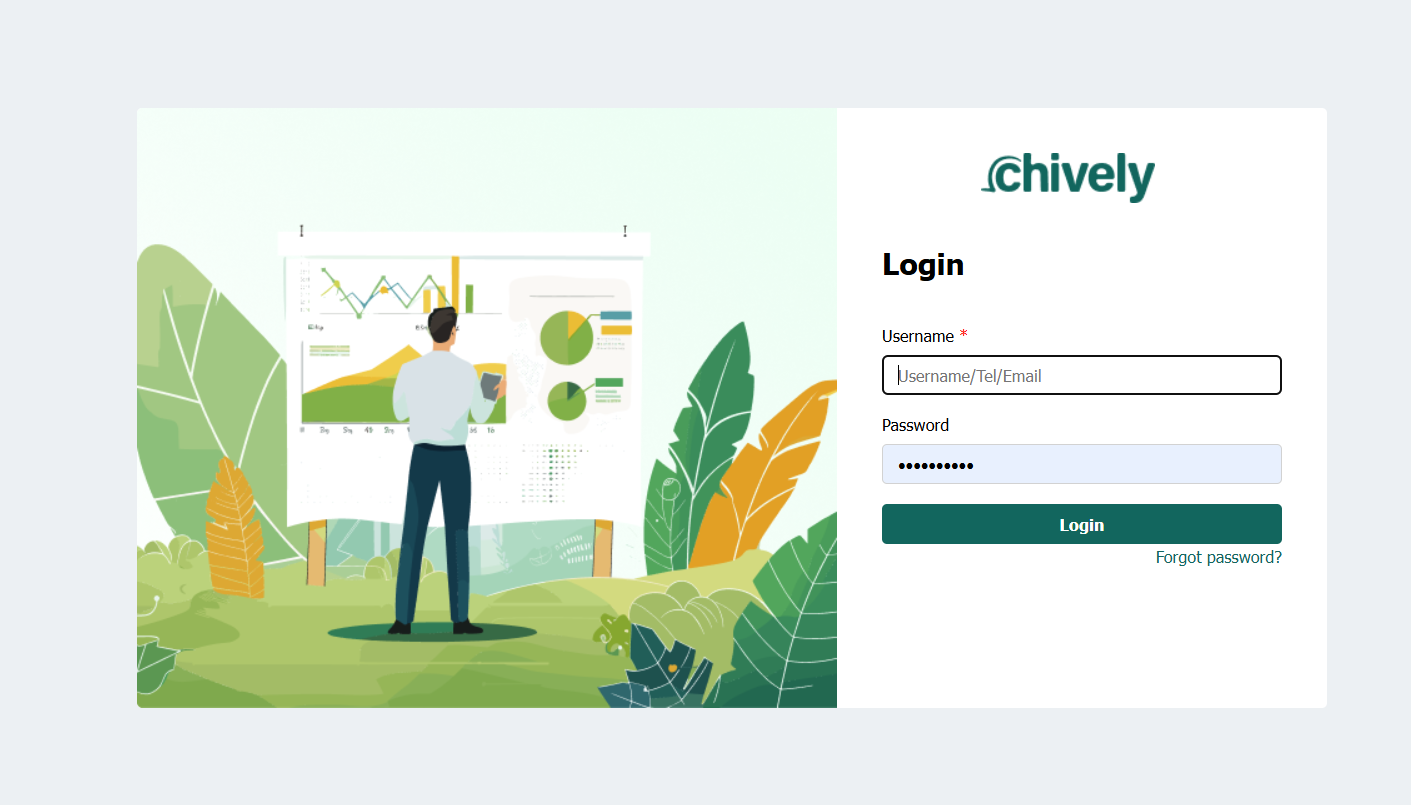
- Open a web browser and access the Chively backend login page.
- Enter your username and password.
- Click Login.
Verification
- Confirm the change is visible in the expected Chively screen.
- Run a quick real-world test to ensure behavior is correct.
- If results are unexpected, double-check permissions and device/network status.
Need help?
Call 1-866-849-2445 for support.